Best Wacom Drawing Tablets Under $300: 2 Spec-Based Picks
Finding the best wacom drawing tablets under $300 requires looking at the raw data.

What this report covers
- Last updated
- 4 Nov 2026
Figures above are read from the product listings for the models named below. Scores are out of 10, based on listed specifications and buyer feedback.
As Amazon Associates, we earn from qualifying purchases. This means we may receive a small commission at no extra cost to you if you click through and make a purchase.
As an Amazon Associate we earn from qualifying purchases. Links on this page are affiliate links.
Finding the best wacom drawing tablets under $300 requires looking at the raw data. We compared 2 models based strictly on published specifications. The top pick is the Wacom Intuos Pro Small Bluetooth Pen Tablet. It leads because its compact 6.42-inch width offers precision for professional artists needing compact precision. This guide helps you decide which device fits your workflow. You will see how size, connectivity, and display type affect your daily use. Focus on the specs that matter to your art style. Let the numbers guide your choice.
Choose pen display or pen tablet
Your first decision is between a pen display and a pen tablet. The Wacom One 14 offers a 14-inch screen for direct drawing. The Intuos Pro Small is a compact pen tablet without a display. Pick the display if you want to see your work directly. Choose the tablet for a smaller footprint and wireless Bluetooth connectivity.
| # | Product | Best for | Price |
|---|---|---|---|
| 1 | Wacom Intuos Pro Small Bluetooth Pen Tablet Best overall | professional artists needing compact precision | |
| 2 | Wacom One 14 Pen Display Best windows | students needing a large screen |
The best fit for you
- You want the most compact model on the list – Wacom Intuos Pro Small Bluetooth Pen Tablet – It weighs only 8.48 ounces and measures 6.42 by 8.46 inches for easy portability.
- You need wireless connectivity for your workflow – Wacom Intuos Pro Small Bluetooth Pen Tablet – This tablet includes Bluetooth support to connect without cables.
- You prefer a large screen for drawing – Wacom One 14 Pen Display – It features a 14-inch Full HD display for a spacious canvas.
- You want a direct wired connection – Wacom One 14 Pen Display – It uses a reliable USB-C connection for stable performance.
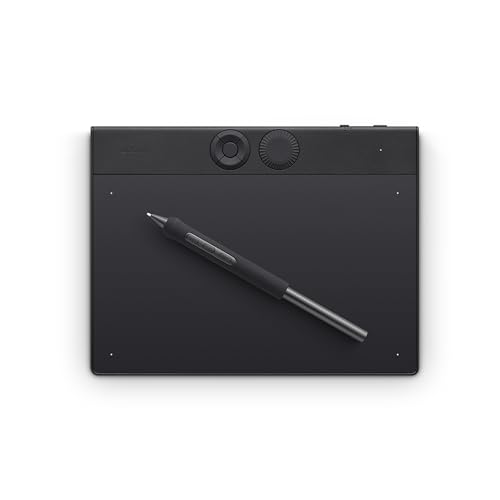
Wacom Intuos Pro Small Bluetooth Pen Tablet
Best for: professional artists needing compact precision
- Pen Pressure
- 8192
- Features
- Stylus, Stylus Pen, Bluetooth, Shortcut Keys
- Tablet Type
- Pen Tablet
- Audience
- Animation
- Length
- 8.46 inches
- Width
- 6.42 inches
The Wacom Intuos Pro Small is a professional pen tablet designed for animation and digital art. It features the Pro Pen 3 with 8192 pressure levels and tilt support for precise strokes. The device includes a mechanical dial and five customizable ExpressKeys to streamline your workflow. It connects via USB or Bluetooth and uses a durable magnesium body. This small footprint model measures 8.46 by 6.42 inches and weighs 8.48 ounces, offering a large active area in a compact size.
- Pro Pen 3 provides 8192 pressure levels and tilt support
- Includes a mechanical dial and five customizable ExpressKeys
- Connects wirelessly via Bluetooth or via USB
- Durable magnesium chassis measures only 4mm thick
- Small size has a smaller active area than Medium or Large options
- 8.48-ounce weight is heavier than standard non-premium tablets
- You need professional-grade pressure sensitivity for animation work
- You want wireless connectivity via Bluetooth for a clean desk
- You prefer a compact tablet that fits small workspaces
- You require a large active area for full-body drawing
- You prefer a lighter device for frequent travel
- You only need basic sketching without professional features
Verdict: The Wacom Intuos Pro Small Drawing Tablet is a robust choice for artists who value precision and wireless convenience in a compact form factor. It suits professionals who need advanced pen technology and customizable controls within a small footprint.
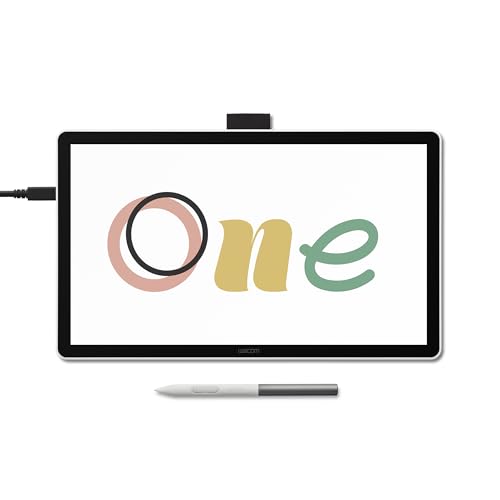
Wacom One 14 Pen Display
Best for: students needing a large screen
- Tablet Type
- Pen display
- Screen Size
- 14"
- Display Resolution
- Full HD
- Color Gamut
- 98% sRGB
- Display Finish
- Laminated, paper-like texture
- Operating System
- Windows
The Wacom One 14 is a 14-inch pen display designed for beginners and students. It features an IPS Full HD laminated screen with 98% sRGB color accuracy and a paper-like texture. The device includes a battery-free pen for pressure-sensitive drawing. It connects via a single USB-C cable to Windows, Mac, or Chromebook systems. The unit weighs 1.65 pounds and measures 13.2 by 7.91 inches.
- 14-inch IPS Full HD laminated display
- 98% sRGB color accuracy
- Battery-free pen with pressure sensitivity
- Single USB-C connectivity
- Compatible with Windows, Mac, and Chromebook
- 14-inch display is smaller than the 15.6-inch screen on the Wacom Intuos Pro Small
- 1.65-pound weight is heavier than the typical 1.1-pound weight of the Wacom Intuos Pro Small
- Requires HDMI converter and power adapter for devices without native USB-C video output
- You want a large 14-inch screen for detailed work
- You use Windows, Mac, or Chromebook computers
- You prefer a battery-free pen for drawing
- You need a larger display area than 14 inches
- You require Bluetooth connectivity without wires
- You want a lighter device under 1.5 pounds
Verdict: Wacom One 14 Pen Display offers a large 14-inch screen and reliable USB-C connection for students and beginners. It suits users who prioritize screen size and direct wired connectivity over portability.
Specifications side by side
| Spec | Wacom Intuos Pro Small Bluetooth Pen Tablet | Wacom One 14 Pen Display |
|---|---|---|
| Tablet Type | – | Pen display |
| Screen Size | – | 14" |
| Display Resolution | – | Full HD |
| Pen Pressure | 8192 | – |
| Color Gamut | – | 98% sRGB |
| Display Finish | – | Laminated, paper-like texture |
| Operating System | – | Windows |
| Features | Stylus, Stylus Pen, Bluetooth, Shortcut Keys | Stylus, Stylus Pen, Full HD Display |
| Audience | Animation | Students, Animation, Beginners |
| Length | 8.46 inches | 13.2 inches |
| Width | 6.42 inches | 7.91 inches |
| Weight | 8.48 ounces | 1.65 pounds |
| Size | Small | 14" Display |
| Model | PTK470K0A | DTC141W0 |
| Color | – | White |
How to choose your tablet
Check active area size
The active area determines how much space you have to draw. A larger area allows for broader strokes and more natural hand movements. The Wacom One 14 provides a 14-inch display for ample room. Smaller tablets like the Intuos Pro Small offer a 6.42-inch width. You should match the size to your desk space. Larger models require more room. Compact models fit easily into bags. Consider your workflow needs carefully.
Decide on display type
You must choose between a pen display and a pen tablet. A pen display lets you draw directly on the screen. The Wacom One 14 includes a Full HD display for this purpose. A pen tablet requires you to look at a separate monitor. The Intuos Pro Small is a pen tablet without a screen. This setup can reduce neck strain for some users. Direct drawing feels more intuitive for beginners. Your preference dictates this choice.
Verify operating system support
Ensure the tablet works with your computer. The Wacom One 14 is designed for Windows. You need to check compatibility before buying. Some models support multiple operating systems. Others are limited to specific platforms. If you use a Mac or Linux system, you must verify support. Using an incompatible tablet can cause frustration. Check the specifications for your exact OS. This step prevents connectivity issues later.
Consider connectivity options
Connectivity affects how you use the device. The Intuos Pro Small includes Bluetooth for wireless connection. This feature reduces cable clutter on your desk. Other models may rely on wired connections. The Wacom One 14 uses a USB-C link. Wired connections offer stable performance without battery concerns. Wireless options provide freedom of movement. Choose based on your workspace setup. Check if the tablet supports your preferred method.
Match device to audience
Different tablets suit different user groups. The Wacom One 14 targets students and beginners. It offers a straightforward experience for learning. The Intuos Pro Small suits professional artists. It provides advanced features for serious work. Your skill level should guide your choice. Beginners may prefer simpler interfaces. Professionals might need more precision and controls. Review the intended audience for each model. This helps you find the right fit.
Frequently asked questions
Which Wacom tablet is best for professional artists?
The Wacom Intuos Pro Small Bluetooth Pen Tablet is the top pick for professionals. It features advanced pen technology and customizable shortcut keys. Its compact design suits artists who need precision without taking up much desk space. The Bluetooth connectivity allows for a clutter-free setup.
What is the largest screen size available under $300?
The Wacom One 14 Pen Display offers the largest screen on this list. It features a 14-inch Full HD display for direct drawing. This size provides ample room for broad strokes and detailed work. It is ideal for students or beginners who prefer a large visual workspace.
Can I use these tablets wirelessly?
Yes, the Wacom Intuos Pro Small supports Bluetooth connectivity. This lets you connect to your computer without using cables. The Wacom One 14 uses a USB-C connection instead. It requires a wired setup for power and data transfer, which ensures stable performance for direct screen drawing.
How portable are these drawing tablets?
The Wacom Intuos Pro Small is highly portable. It weighs only 8.48 ounces and measures 6.42 by 8.46 inches. You can easily slip it into a bag. The Wacom One 14 is heavier at 1.65 pounds. Its larger size makes it less suitable for frequent travel.
Are these tablets suitable for animation work?
Both models are listed as suitable for animation. The Wacom Intuos Pro Small targets professional artists needing precision. The Wacom One 14 is designed for students and beginners in animation. Each offers features that support the frame-by-frame or digital painting processes common in animation projects.
What operating systems do these tablets support?
The Wacom One 14 is explicitly noted for Windows support. The Wacom Intuos Pro Small is a universal pen tablet. It typically supports multiple operating systems, though specific details depend on your driver setup. Both tablets include stylus pens for direct input on your preferred device.
Do these tablets come with a stylus pen?
Yes, both tablets include a stylus pen. The Wacom Intuos Pro Small uses a pressure-sensitive pen for precise control. The Wacom One 14 also includes a stylus for drawing directly on its screen. These pens are essential tools for digital art and sketching on these devices.


