Choosing Drawing Tablets in 2026: The Specs That Matter and 8 Picks
This drawing tablet buying guide helps you choose the right tool for your creative workflow.

What this report covers
- Last updated
- 3 Nov 2026
Figures above are read from the product listings for the models named below. Scores are out of 10, based on listed specifications and buyer feedback.
As Amazon Associates, we earn from qualifying purchases. This means we may receive a small commission at no extra cost to you if you click through and make a purchase.
As an Amazon Associate we earn from qualifying purchases. Links on this page are affiliate links.
This drawing tablet buying guide helps you choose the right tool for your creative workflow. You will decide between standalone Android devices, pen displays, and traditional pen tablets. The selection process focuses on published specifications that affect your daily use. We analyzed attributes like pressure sensitivity, screen size, and connectivity options to identify the most suitable devices.
We selected 8 products based strictly on their technical data. Each pick addresses specific needs, from portable sketching to stationary professional art. You can compare dimensions, weight, and feature sets to find a match for your desk space. The guide walks you through these decisions without subjective testing or personal experience. You rely on clear spec comparisons to make an informed choice for your art station.
Key Specs for Drawing Tablets
Operating System and Standalone Use
Your choice of operating system determines whether the device works independently or requires a host computer. Standalone tablets like the XPPen 10.95" Android Drawing Tablet run their own software, allowing you to sketch without a PC. This offers true portability for on-the-go sessions. In contrast, most Wacom models are pen tablets or pen displays that need to connect to a computer to function. If you value a self-contained workflow, prioritize Android-based standalone units. If you already have a powerful computer, a connected display or tablet may offer more processing power and software compatibility.
Look for
- Android for standalone operation
- Requires host computer connection
Screen Size and Canvas Area
The physical dimensions of the device dictate your workspace. Large pen displays, such as the Wacom 22HD Pen Display, provide a 22-inch canvas ideal for detailed, stationary work. These units are heavy and require a dedicated desk setup. Smaller options like the Wacom Cintiq 13HD offer a 13.3-inch screen, balancing screen real estate with desk footprint. For those without a screen, pen tablets like the Wacom Graphire Medium offer a 10-inch active area. You must decide if you need a large visual field or a compact tool that fits in a bag.
Look for
- 22-inch for large stationary canvas
- 13-inch for balanced desk space
- 10-inch for compact non-screen models
Connectivity Options
How the tablet connects to your system affects setup complexity and desk clutter. Wireless connectivity, found in the Wacom Intuos Small Bluetooth and Wacom Intuos Medium Bluetooth Pen Tablet, removes cables from your workspace. This is crucial for portable students or those with limited desk space. Wired connections offer stable, low-latency performance but require physical ports. Check if the device supports Bluetooth for easy pairing or if it relies on USB cables. Wireless models often prioritize portability, while wired options may offer consistent performance without battery concerns.
Look for
- Bluetooth for wireless freedom
- USB for stable wired connection
Pen Pressure Sensitivity
Pressure sensitivity determines how naturally your digital strokes mimic traditional media. The XPPen 10.95" Android Drawing Tablet specifies 16K levels of pressure, allowing for fine gradations in line weight and opacity. Higher levels generally provide smoother transitions, though the difference becomes subtle at high counts. Basic models like the Wacom Graphire Medium Pen Tablet focus on essential stylus input without listing high pressure counts. For professional digital art, ensure the device supports high pressure levels to capture the full range of your hand movements.
Look for
- 16K levels for fine control
- High pressure sensitivity for detail
Display Type and Interaction
The interface between your hand and the device changes your drawing experience. Pen displays like the Wacom Cintiq 22HD Touch Pen Display let you draw directly on the screen, offering intuitive control. Some models add touchscreen capabilities for navigation without a stylus. Traditional pen tablets, such as the Wacom Bamboo Capture Pen Tablet, require you to look at a monitor while drawing on a separate surface. This hand-eye coordination takes practice but saves space. Choose a pen display for direct interaction or a pen tablet for compact, monitor-based workflows.
Look for
- Direct screen drawing on pen displays
- Touchscreen for navigation convenience
- Separate surface for pen tablets
Tilt Support and Features
Advanced features like tilt support enhance the realism of your digital tools. The XPPen 10.95" Android Drawing Tablet includes tilt support, allowing the stylus to detect angle changes for shading effects. This mimics the behavior of pencils or brushes. Other devices may list basic stylus features without specifying tilt detection. Shortcut keys, available on Wacom Intuos models, improve workflow efficiency by mapping common actions. Evaluate if you need natural brush dynamics or quick-access buttons to streamline your creative process.
Look for
- Tilt support for shading effects
- Shortcut keys for workflow speed
Portability and Weight
Weight and dimensions determine how easily you can move your device. Standalone tablets and small pen tablets are highly portable. The Wacom Intuos Small Bluetooth weighs just 8.8 ounces and fits in a bag. Large pen displays like the Wacom 22HD Pen Display weigh 18.7 pounds and are fixed to a desk. Consider your daily routine. If you travel or work in multiple locations, prioritize lightweight, compact devices. For a dedicated studio space, heavier, larger screens may be acceptable for the increased canvas area.
Look for
- Under 1 pound for easy travel
- Over 15 pounds for stationary use
Types of Drawing Tablets
Standalone Android Tablets
These devices run their own operating system, letting you draw without a computer. The XPPen 10.95" Android Drawing Tablet offers a portable, complete sketching experience. It features tilt support and an anti-glare display for comfortable use. You get 16K pressure levels for detailed lines. This type suits artists who want mobility and independence. The trade-off is the weight, which can be higher than simple pen tablets. It is best for portable, standalone digital sketching.
Pen Displays
Pen displays connect to a computer and show your work directly on the screen. The Wacom Cintiq 22HD Touch Pen Display provides a large 22-inch canvas for stationary work. It includes touch capabilities for intuitive navigation. You draw directly on the image, which feels natural. This type fits professionals needing screen real estate. The main trade-off is the bulk and weight, making it less portable. It is ideal for stationary artists who prioritize direct screen interaction over compact setups.
Wireless Pen Tablets
These are compact input devices that connect via Bluetooth. The Wacom Intuos Medium Bluetooth Pen Tablet offers a wireless connection for clean desks. It includes shortcut keys for efficient workflows. You use it with a stylus for precise input. This type suits students and creators with limited space. The trade-off is the lack of a built-in screen, requiring you to look at a monitor. It is best for portable digital drawing and note-taking where portability matters.
Common Mistakes When Buying
Ignoring pen pressure levels
Low pressure sensitivity limits detail in your artwork. Look for at least 4,096 levels of pressure. Higher counts allow for finer line weight variations. This spec directly impacts the realism and precision of your digital strokes and shading techniques.
Overlooking active area size
A small drawing surface restricts your hand movements. Check the active area dimensions in inches or centimeters. A larger area provides more room for broad strokes. Ensure the size matches your workspace and comfort for extended creative sessions.
Assuming all tablets are standalone
Not all drawing tablets have their own operating system. Pen displays require a computer connection. Traditional tablets also need a host PC. Verify if the device runs Android or requires external hardware. This affects your setup and portability needs.
Disregarding screen resolution
Low resolution results in pixelated lines and blurry details. Check the display resolution specifications. Higher pixel density ensures crisp edges and accurate color representation. This matters for professional work where fine details and clarity are essential for your final output.
Neglecting tilt support
Tilt functionality mimics natural pencil angles. Ensure the pen supports tilt detection. This feature adds depth to shading and brush strokes. Without it, your artwork may lack the organic feel of traditional media. Check the pen specs for this capability.
| # | Product | Best for | Price |
|---|---|---|---|
| 1 | XPPen 10.95" Android Drawing Tablet | portable standalone digital sketching | |
| 2 | Wacom Bamboo Capture Pen Tablet | compact desk setups and shortcut-focused workflows | |
| 3 | Wacom 22HD Pen Display | stationary artists needing a large 22-inch canvas | |
| 4 | Wacom Cintiq 22HD Touch Pen Display | stationary professional digital art | |
| 5 | Wacom Cintiq 13HD 13.3-Inch Pen Display | Artists needing a compact 13-inch pen display | |
| 6 | Wacom Graphire Medium Pen Tablet | Beginners needing a wired, battery-free pen | |
| 7 | Wacom Intuos Small Bluetooth | Students needing portable, precise input | |
| 8 | Wacom Intuos Medium Bluetooth Pen Tablet | Portable digital drawing and note-taking |

XPPen 10.95" Android Drawing Tablet
Best for: portable standalone digital sketching
- Tablet Type
- Standalone
- Screen Size
- 10.95-inch
- Pen Pressure
- 16384
- Refresh Rate
- 90Hz
- Display Finish
- AG nano-etching, anti-glare
- Operating System
- Android
This is a standalone Android drawing tablet with a 10.95-inch display. It features an anti-glare screen with 90Hz refresh rate and 16,384 pressure levels. The device runs Android 14 and includes the XPPen Notes app. Weighing 3.55 pounds, it offers a portable form factor for sketching and note-taking. It suits users who want a self-contained device without a computer.
- 10.95-inch X-Paper display with anti-glare coating
- 90Hz refresh rate for smooth line transitions
- 16,384 pressure levels with tilt support
- Runs Android 14 with Google Play access
- Standalone design requires no host computer
- Heavier at 3.55 pounds compared to lighter portable options
- Smaller 10.95-inch screen compared to 13-inch or 22-inch competitors
- 7mm thickness limits internal battery capacity
- You want a standalone device that does not need a PC
- You prefer a paper-like texture with anti-glare technology
- You need Android apps for advanced sketching workflows
- You require a larger 22-inch display for detailed work
- You need a lightweight pen-only tablet under 1 pound
- You prefer a monochrome e-ink display for reading
Verdict: XP-Pen 10.95" Android Standalone Tablet provides a complete Android drawing experience in a portable package. It fits artists who want to sketch independently without connecting to a computer.
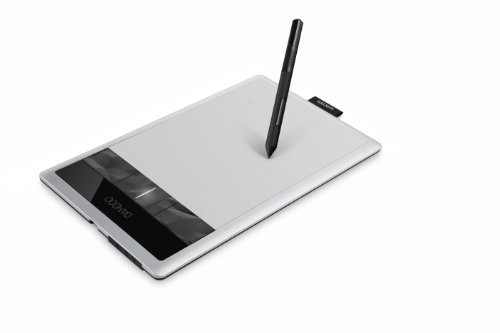
Wacom Bamboo Capture Pen Tablet
Best for: compact desk setups and shortcut-focused workflows
- Shortcut Controls
- 4 ExpressKeys
- Features
- Stylus, Stylus Pen
- Color
- Silver
- Tablet Type
- Pen Tablet
- Dimensions
- 10.9 × 6.9 × 0.4 inches
- Weight
- 14.9 ounces
The Wacom Bamboo Capture is a portable pen tablet designed for digital drawing and photo editing. It measures 10.9 by 6.9 inches with a slim 0.4-inch profile. The device weighs 14.9 ounces and includes four express keys for shortcuts. You get a pressure-sensitive pen for natural input. This model suits users who need a compact, dedicated input device for creative software.
- Compact 10.9-inch active area
- Lightweight 14.9-ounce design
- Includes four express keys
- Pressure-sensitive pen included
- Smaller active area than most pen displays on this list
- Heavier than the Wacom Intuos Small Bluetooth model
- Non-touch interface compared to other Cintiq options
- You need a compact drawing surface for a small desk
- You want dedicated express keys for shortcuts
- You prefer a traditional pen tablet over a display
- You require a large screen for direct drawing
- You need touch screen functionality
- You want a lightweight portable option under 10 ounces
Verdict: Wacom Bamboo Capture Pen Tablet offers a compact, dedicated input solution for users who prioritize portability and shortcut keys over a large display area. It fits well in tight workspaces where a monitor-based pen display is too large.

Wacom 22HD Pen Display
Best for: stationary artists needing a large 22-inch canvas
- Screen Size
- 21-Inch
- Display Resolution
- full HD resolution
- Shortcut Controls
- customizable express keys
- Features
- Stylus, Stylus Pen
- Color
- Black
- Tablet Type
- Pen Display
The Wacom Cintiq 22HD is a 22-inch pen display with full HD resolution. It lets you draw directly on the screen using a tilt-sensitive pen. The unit includes customizable express keys for shortcuts. At 18.7 pounds, it is a heavy desktop device. This large display suits artists who need a spacious canvas for detailed work.
- 22-inch HD display with full HD resolution
- Tilt-sensitive pen technology for natural drawing
- Customizable express keys for shortcuts
- Direct screen drawing capability
- Heavy build at 18.7 pounds
- Large footprint measuring 25.5 by 15.7 inches
- Thicker profile at 2.2 inches
- You need a large 22-inch screen for detailed artwork
- You prefer drawing directly on the display surface
- You have a dedicated desk space for a heavy device
- You require a portable tablet for travel
- You want a lighter device under 10 pounds
- You have limited desk space for a 25-inch width
Verdict: Wacom Cintiq 22HD Pen Display is a substantial desktop tool for stationary artists who value a large 22-inch canvas. It fits professionals who prioritize screen real estate and direct drawing over portability.

Wacom Cintiq 22HD Touch Pen Display
Best for: stationary professional digital art
- Screen Size
- 21.5"
- Display Resolution
- 1920 x 1080
- Shortcut Controls
- ExpressKeys and Touch Strips
- Features
- Stylus, Stylus Pen
- Display
- Touchscreen
- Color
- Black
The Wacom Cintiq 22HD Touch is a 21.5-inch pen display with 1920 x 1080 resolution and 16.7 million colors. It supports multi-touch gestures and includes ExpressKeys for shortcuts. Weighing 18.7 pounds, this unit offers professional pen-pressure and tilt sensitivity. It suits artists who want a large, responsive screen for detailed work.
- 21.5-inch HD display with 1920 x 1080 resolution
- 16.7 million color range for accurate visuals
- Multi-touch support for pan, zoom, and rotate gestures
- ExpressKeys and Touch Strips for personalized shortcuts
- 18.7-pound weight makes it less portable than smaller tablets
- 1920 x 1080 resolution is lower than 4K options
- You need a large 21.5-inch canvas for detailed drawing
- You want touch gestures for easier navigation
- You prefer physical shortcut keys for workflow efficiency
- You require a lightweight device for travel
- You need 4K or higher resolution clarity
- You prefer a standalone tablet without a PC
Verdict: Wacom Cintiq 22HD Touch Pen Display fits professionals who prioritize screen size and touch interaction over portability.

Wacom Cintiq 13HD 13.3-Inch Pen Display
Best for: Artists needing a compact 13-inch pen display
- Screen Size
- 13.3"
- Display Resolution
- 1920 X 1080
- Pen Pressure
- 2048 levels
- Shortcut Controls
- four ExpressKeys, Rocker ring
- Features
- Stylus, Stylus Pen
- Color
- Black
The Wacom Cintiq 13HD is a 13.3-inch interactive pen display with a 1920×1080 resolution. It uses a pressure-sensitive stylus with 2048 levels and tilt detection. The unit includes four customizable ExpressKeys and a rocker ring. It connects to PC or Mac via a single 3-in-1 cable. This compact, lightweight design suits artists who need a direct screen drawing experience.
- 13.3-inch HD display with 1920×1080 resolution
- 2048 levels of pressure sensitivity
- Tilt-sensitive Pro Pen
- Four customizable ExpressKeys
- Includes 3-position display stand
- 13-inch screen is smaller than the 22-inch Cintiq 22HD models
- 2.64-pound weight is heavier than portable Intuos pen tablets
- Older DTK1300 model lacks modern touch interface features
- You want a direct screen drawing experience
- You need a compact 13-inch display
- You prefer a traditional pen display setup
- You require a 22-inch or larger screen
- You need a wireless standalone tablet
- You prefer a lightweight portable pen tablet
Verdict: Wacom 13-inch HD Pen Display offers a solid 13.3-inch canvas for artists who prioritize direct screen interaction over portability. It fits users who want a dedicated drawing display without the bulk of a 22-inch monitor.

Wacom Graphire Medium Pen Tablet
Best for: Beginners needing a wired, battery-free pen
- Pen Pressure
- 2048, tip only
- Features
- Stylus, Stylus Pen
- Color
- Black
- Tablet Type
- Pen Tablet
- Dimensions
- 8.27 × 0.34 × 5.75 inches
- Weight
- 8.82 ounces
The Wacom Graphire is a medium-sized pen tablet with an 10-inch active area. It offers 2048 pressure levels for precise input. The cordless, battery-free pen connects via USB. It runs on Windows 7 or later and Mac OS X 10.10 or later. This model suits beginners who need reliable, straightforward digital drawing capabilities without complex features.
- 10-inch active drawing area
- 2048 pressure levels
- Cordless, battery-free pen
- USB connectivity
- 2048 pressure levels is lower than modern standards
- Requires Windows 7 or Mac OS X 10.10 or later
- No wireless connectivity options
- You want a simple, dedicated drawing surface
- You prefer a cordless pen without batteries
- You use Windows 7 or Mac OS X 10.10 or later
- You need wireless Bluetooth connectivity
- You require pressure levels above 2048
- You need compatibility with newer operating systems only
Verdict: Wacom Graphire Medium Pen Tablet is a basic, wired drawing tool for users who prioritize a cordless pen and simple USB setup over advanced pressure sensitivity or wireless features.

Wacom Intuos Small Bluetooth
Best for: Students needing portable, precise input
- Shortcut Controls
- 4 Customizable ExpressKeys
- Operating System
- Android
- Features
- Bluetooth, Shortcut Keys
- Tablet Type
- Pen Tablet
- Audience
- Students
- Dimensions
- 7.87 × 6.3 × 0.35 inches
This Wacom Intuos Small tablet offers precise pen input for digital creativity. It measures 6.3 by 7.87 inches and weighs 8.8 ounces. The device connects via Bluetooth or USB-A. It uses EMR battery-free pen technology for natural drawing. The compact size makes it portable for students and teachers. It works with any creative software you choose to use.
- Compact 6.3 by 7.87 inch active area
- Lightweight 8.8 ounce portable design
- Wireless Bluetooth or wired USB-A connectivity
- Battery-free EMR pen technology for precision
- Small 6.3 by 7.87 inch drawing area limits large canvas work
- 8.8 ounce weight adds bulk compared to standard mouse usage
- Small size restricts hand movement for detailed illustration tasks
- You need a portable tablet for classroom notes
- You want a compact device for small desks
- You prefer wireless connectivity for your setup
- You require a large screen for detailed art
- You need a standalone display with a built-in monitor
- You want a tablet with a touchscreen interface
Verdict: Wacom Intuos Small Bluetooth Tablet fits students needing a portable, precise input device for standard creative tasks. It is ideal for those with limited desk space who prioritize portability over large drawing areas.
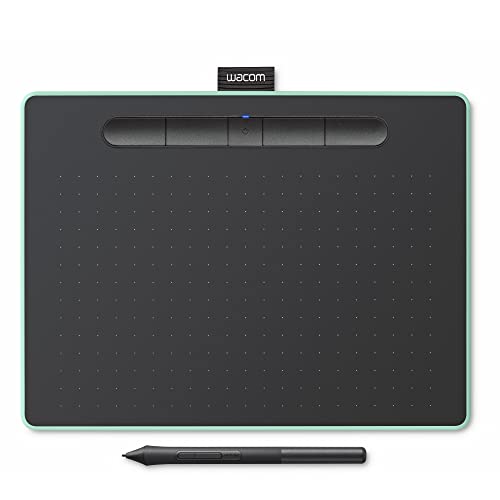
Wacom Intuos Medium Bluetooth Pen Tablet
Best for: Portable digital drawing and note-taking
- Shortcut Controls
- 4 Customizable ExpressKeys
- Operating System
- Android
- Features
- Bluetooth, Shortcut Keys
- Tablet Type
- Pen Tablet
- Audience
- Students
- Dimensions
- 10.4 × 7.8 × 0.35 inches
The Wacom Intuos Medium is a pen tablet designed for digital creativity. It features a 10.4 by 7.8 inch active area and connects via Bluetooth or USB. The device weighs 14.5 ounces and includes shortcut keys for workflow efficiency. This setup suits students and teachers who need portable, reliable input for drawing or document markup without complex setup.
- Medium active area measures 10.4 by 7.8 inches
- Connects wirelessly via Bluetooth or with a USB cable
- Includes physical shortcut keys for quick access
- Weighs only 14.5 ounces for portability
- Active drawing area is smaller than the 21-inch or 22-inch displays listed elsewhere
- Requires a separate host device as it is not a standalone screen
- You need a portable tablet for sketching or note-taking on the go
- You want wireless connectivity via Bluetooth to reduce desk clutter
- You are a student or teacher needing reliable pen input for digital work
- You require a built-in display to draw directly on the screen
- You need a larger active area than the medium size provides
- You prefer a standalone device that does not connect to a computer
Verdict: Wacom Intuos Medium Bluetooth Tablet is a compact, wireless pen tablet that fits students and creators who prioritize portability and reliable connectivity over a large built-in screen.
Specifications side by side
| Spec | XPPen 10.95" Android Drawing Tablet | Wacom Bamboo Capture Pen Tablet | Wacom 22HD Pen Display | Wacom Cintiq 22HD Touch Pen Display | Wacom Cintiq 13HD 13.3-Inch Pen Display | Wacom Graphire Medium Pen Tablet | Wacom Intuos Small Bluetooth | Wacom Intuos Medium Bluetooth Pen Tablet |
|---|---|---|---|---|---|---|---|---|
| Tablet Type | Standalone | – | – | – | – | – | – | – |
| Screen Size | 10.95-inch | – | 21-Inch | 21.5" | 13.3" | – | – | – |
| Display Resolution | – | – | full HD resolution | 1920 x 1080 | 1920 X 1080 | – | – | – |
| Pen Pressure | 16384 | – | – | – | 2048 levels | 2048, tip only | – | – |
| Refresh Rate | 90Hz | – | – | – | – | – | – | – |
| Display Finish | AG nano-etching, anti-glare | – | – | – | – | – | – | – |
| Shortcut Controls | – | 4 ExpressKeys | customizable express keys | ExpressKeys and Touch Strips | four ExpressKeys, Rocker ring | – | 4 Customizable ExpressKeys | 4 Customizable ExpressKeys |
| Operating System | Android | – | – | – | – | – | Android | Android |
| Use | Note-Taking | – | – | – | – | – | – | – |
| Features | Tilt Support | Stylus, Stylus Pen | Stylus, Stylus Pen | Stylus, Stylus Pen | Stylus, Stylus Pen | Stylus, Stylus Pen | Bluetooth, Shortcut Keys | Bluetooth, Shortcut Keys |
| Display | Anti-Glare | – | – | Touchscreen | – | – | – | – |
| Color | Silver White | Silver | Black | Black | Black | Black | Pistachio | Pistachio |
| Audience | – | – | – | – | – | – | Students | Students |
| Weight | 3.55 pounds | 14.9 ounces | 18.7 pounds | 18.7 pounds | 2.64 pounds | 8.82 ounces | 8.8 ounces | 14.5 ounces |
| Dimensions | – | 10.9 × 6.9 × 0.4 inches | 25.5 × 2.2 × 15.7 inches | 25.6 × 2.7 × 15.7 inches | 14.8 × 0.53 × 9.76 inches | 8.27 × 0.34 × 5.75 inches | 7.87 × 6.3 × 0.35 inches | 10.4 × 7.8 × 0.35 inches |
| Size | 7.17 x 10.16 x 0.28 inches | – | 22HD | 22HD Touch | 13" | 10 inches | Small, Wireless | Medium, Wireless |
| Model | 52e86482-279f-4728-80b7-089e325299ba | CTH470 | DTK2200 | DTH2200 | DTK1300 | CTL-672/K0-C | CTL4100WLE0 | CTL6100WLE0 |
If you want general mobile hardware instead of dedicated stylus hardware, consult the tablet buying guide.
Frequently asked questions
Is a pen display better than a pen tablet for beginners?
A pen display offers direct screen interaction, which feels more natural than looking at a monitor while drawing on a separate pad. The Wacom 13HD Pen Display provides a compact 13.3-inch canvas for this direct feedback. However, pen tablets like the Wacom Bamboo Capture are smaller and often more affordable. You choose based on whether you prioritize natural hand-eye coordination or budget and desk space.
Do I need Bluetooth connectivity for a drawing tablet?
Bluetooth connectivity removes cable clutter, making the device ideal for mobile or student use. The Wacom Intuos Small Bluetooth and Medium Bluetooth models feature wireless links for seamless connection to your computer. This allows you to move the tablet freely without being tethered. If you have limited desk space or travel often, wireless functionality is a practical advantage for your workflow.
What is the difference between a pen tablet and a pen display?
A pen tablet requires you to look at your computer screen while drawing on a flat surface. A pen display integrates the drawing area with the screen, allowing you to draw directly where you see your lines. The Wacom Cintiq 22HD Touch Pen Display is a large example of the latter. You select a pen display for a more intuitive drawing experience rather than indirect input.
Can I use a drawing tablet without a computer?
Yes, standalone tablets run their own operating systems and do not require a host computer. The XPPen 10.95" Android Drawing Tablet provides a complete Android drawing experience in a portable package. You can sketch independently using its built-in software. This option fits artists who want to work on the go without carrying a laptop or desktop system for their creative sessions.
How large should a drawing tablet be for professional work?
Screen size determines your available canvas area and precision. The Wacom 22HD Pen Display offers a substantial 22-inch canvas for stationary artists who need maximum space. Smaller options like the Wacom Graphire Medium provide a 10-inch active area. You choose a larger size for detailed professional work and a smaller size for portability or tight workspace constraints.
Are shortcut keys important for digital artists?
Shortcut keys speed up your workflow by allowing quick access to tools without using a mouse. The Wacom Intuos Medium Bluetooth Pen Tablet includes dedicated shortcut keys for efficient operation. The Wacom Bamboo Capture also focuses on shortcut-focused workflows for compact setups. You benefit from these keys by reducing hand movement and increasing drawing speed during long creative sessions.


