Best Wacom Windows Drawing Tablets in 2026: 3 Picks
Finding the best wacom windows drawing tablets requires looking at the specs that matter for your workflow.

What this report covers
- Last updated
- 4 Nov 2026
Figures above are read from the product listings for the models named below. Scores are out of 10, based on listed specifications and buyer feedback.
As Amazon Associates, we earn from qualifying purchases. This means we may receive a small commission at no extra cost to you if you click through and make a purchase.
As an Amazon Associate we earn from qualifying purchases. Links on this page are affiliate links.
Finding the best wacom windows drawing tablets requires looking at the specs that matter for your workflow. We compared 3 models based on the specifications published on the listings. The Wacom Intuos Medium Wireless Drawing Tablet leads because its 10.4 by 7.8 inch active area offers a spacious canvas for students. This guide helps you decide which size and connectivity options fit your desk setup and drawing style.
Choose size based on your space
Your choice depends on desk space and portability needs. The top pick offers a 10.4 by 7.8 inch active area for ample drawing room. The budget option provides a smaller 6-inch screen for easier transport. Both support Bluetooth for wireless freedom. Select the medium model if you prioritize precision and a larger canvas over compact portability.
| # | Product | Best for | Price |
|---|---|---|---|
| 1 | Wacom Intuos Medium Wireless Drawing Tablet Best overall | Students needing a medium wireless canvas | |
| 2 | Wacom Intuos Pro Small Bluetooth Tablet Best budget | Portable professional illustration on Windows | |
| 3 | Wacom One Medium Bluetooth Tablet Best beginners | beginners and students on Windows |
The best fit for you
- You need a spacious wireless canvas for school – Wacom Intuos Medium Wireless Drawing Tablet – It has a 10.4 by 7.8 inch active area and Bluetooth connectivity.
- You want portable professional illustration with tilt support – Wacom Intuos Pro Small Bluetooth Tablet – This small tablet offers professional-grade pen accuracy and wireless freedom.
- You are a beginner seeking a straightforward setup – Wacom One Medium Bluetooth Tablet – It provides Bluetooth connectivity and a familiar pen feel for entry-level users.

Wacom Intuos Medium Wireless Drawing Tablet
Best for: Students needing a medium wireless canvas
- Operating System
- Windows
- Shortcut Controls
- 4 ExpressKeys
- Features
- Stylus, Stylus Pen, Bluetooth, Battery-Free Pen, Shortcut Keys
- Color
- Black
- Tablet Type
- Pen Tablet
- Audience
- Students
The Wacom Intuos Medium is a wireless graphics tablet designed for Windows. It features a 10.4 by 7.8 inch active area and a slim 0.4 inch profile. The battery-free pen uses EMR technology for natural pressure sensitivity. You get Bluetooth connectivity or USB-A wiring. It includes shortcut keys and creative software. This setup suits students and digital artists who need reliable precision.
- 10.4 by 7.8 inch active drawing area
- Battery-free EMR pen for natural pressure sensitivity
- Wireless Bluetooth or wired USB-A connectivity
- Four customizable ExpressKeys for shortcuts
- Includes creative software and online training
- 0.4 inch thickness is bulkier than the 0.1 inch Small variant
- Medium size is larger than the Small option for portability
- 14.5 ounce weight is heavier than the Small model
- You need a larger 10.4 by 7.8 inch active area for detailed work
- You prefer wireless Bluetooth connectivity for a clean desk setup
- You want a battery-free pen that requires no charging
- You require the most portable Small size with a 0.1 inch profile
- You need a display tablet with a built-in screen
- You only use macOS and cannot utilize Windows-specific features
Verdict: Wacom Intuos Medium Bluetooth offers a spacious 10.4 by 7.8 inch active area and wireless freedom for students. It fits digital artists who prioritize precision and a larger canvas over compact portability.
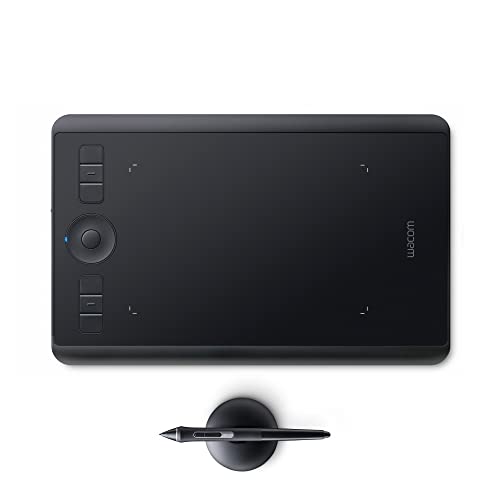
Wacom Intuos Pro Small Bluetooth Tablet
Best for: Portable professional illustration on Windows
- Operating System
- Windows
- Pen Pressure
- 8192 levels
- Shortcut Controls
- 6 ExpressKeys, Touch Ring
- Screen Size
- 6-Inch
- Features
- Stylus, Stylus Pen, Bluetooth
- Display
- Touchscreen
The Wacom Intuos Pro Small is a wireless graphics tablet designed for Windows users. It features a 6-inch active area and connects via Bluetooth or USB. The included Pro Pen 2 offers 8192 levels of pressure sensitivity and tilt recognition. You get six ExpressKeys and a touch ring for shortcuts. This model weighs 15.8 ounces and measures 11.8 by 7.75 inches. It suits professionals needing portable precision.
- Pro Pen 2 with 8192 pressure levels
- Bluetooth and USB connectivity
- Tilt recognition support
- Six programmable ExpressKeys
- Customizable touch ring
- 6-inch active area is smaller than the Medium options listed
- 15.8-ounce weight is heavier than typical non-pro models
- 2-inch height makes it bulkier than flat pads
- You need a compact drawing surface for travel
- You require tilt recognition for natural shading
- You want wireless connectivity without a dongle
- You prefer a larger 10-inch active area
- You need a lightweight pad under 10 ounces
- You want a display tablet with a screen
Verdict: Wacom Intuos Pro Small Wireless Tablet delivers professional-grade pen accuracy in a portable form factor. It fits artists who prioritize wireless freedom and tilt support over a larger drawing space.

Wacom One Medium Bluetooth Tablet
Best for: beginners and students on Windows
- Operating System
- Windows
- Pen Pressure
- 4096 levels
- Features
- Stylus, Stylus Pen, Bluetooth, Battery-Free Pen
- Tablet Type
- Pen Tablet
- Audience
- Students, Beginners
- Dimensions
- 9.9 × 7.1 × 0.3 inches
The Wacom One Medium is a Bluetooth-enabled pen tablet designed for Windows users. It features a 9.9 x 7.1 inch body with a 8.5 x 5.3 inch active area. The included battery-free pen offers 4096 pressure levels and tilt recognition. You get two customizable shortcut buttons on the pen. This setup suits beginners and students who need a reliable, entry-level drawing surface.
- 4096 levels of pressure sensitivity for detailed work
- Battery-free pen with natural tilt recognition
- Bluetooth connectivity for wireless connection to Windows PCs
- Two customizable shortcut buttons on the pen
- Smaller active area than the Intuos Pro Small model
- Heavier build at 12.2 ounces compared to lighter alternatives
- Fewer customization options than the Intuos Pro series
- You are a beginner looking for a reliable starting point
- You need a Bluetooth connection for your Windows PC
- You want a pen with tilt recognition for natural drawing
- You require a larger active area for professional workflows
- You need the advanced features of the Intuos Pro
- You prefer a lighter, more portable device
Verdict: Wacom One Medium Drawing Tablet is a solid entry-level choice for beginners who value Bluetooth connectivity and a familiar pen feel. It fits users who want a straightforward Windows drawing setup without the complexity of higher-end models.
Specifications side by side
| Spec | Wacom Intuos Medium Wireless Drawing Tablet | Wacom Intuos Pro Small Bluetooth Tablet | Wacom One Medium Bluetooth Tablet |
|---|---|---|---|
| Pen Pressure | – | 8192 levels | 4096 levels |
| Shortcut Controls | 4 ExpressKeys | 6 ExpressKeys, Touch Ring | – |
| Screen Size | – | 6-Inch | – |
| Operating System | Windows | Windows | Windows |
| Features | Stylus, Stylus Pen, Bluetooth, Battery-Free Pen, Shortcut Keys | Stylus, Stylus Pen, Bluetooth | Stylus, Stylus Pen, Bluetooth, Battery-Free Pen |
| Display | – | Touchscreen | – |
| Color | Black | Black | White |
| Tablet Type | Pen Tablet | – | Pen Tablet |
| Audience | Students | – | Students, Beginners |
| Dimensions | 10.4 × 7.8 × 0.4 inches | 11.8 × 7.75 × 2 inches | 9.9 × 7.1 × 0.3 inches |
| Weight | 14.5 ounces | 15.8 ounces | 12.2 ounces |
| Size | Medium, Wireless (Pack of 1) | Small | Medium |
| Model | CTL6100WLK0 | PTH460K0A | CTC6110WLW0A |
Key specs for choosing your tablet
Check active area size
The active area determines how much space you have to draw. A larger area allows for broader strokes and more natural hand movements. The top pick offers a 10.4 by 7.8 inch canvas, which suits students needing room to work. Smaller tablets save desk space but may feel cramped. Measure your current workspace before buying. Ensure the tablet fits comfortably on your desk without crowding other items. Consider how much arm movement you prefer when sketching or inking.
Verify wireless connectivity
Bluetooth connectivity reduces cable clutter on your desk. Most models in this guide support wireless pairing with Windows PCs. This feature allows you to place the tablet anywhere within range. Check if the device requires batteries for the pen. Some models use battery-free pens that draw power from the tablet. Others may need charged batteries. Wireless convenience is ideal for clean setups. Ensure your computer has Bluetooth enabled for seamless pairing without extra dongles.
Assess portability needs
Weight and dimensions affect how easy it is to carry. The budget option weighs 15.8 ounces and measures 11.8 inches long. This small form factor fits easily into a bag. The beginner model is lighter at 12.2 ounces and slightly shorter. If you travel often or share a desk, choose a compact size. Heavier tablets are stable but less portable. Check the thickness to ensure it fits your carrying case. Balance portability with the drawing space you actually need for your art.
Confirm Windows compatibility
All listed tablets are designed for Windows operating systems. This ensures driver support and feature compatibility on your PC. Verify that your system meets the minimum requirements for Bluetooth or USB connection. Some features may vary between Windows versions. Check the manufacturer’s site for specific driver downloads. This step prevents installation issues later. Ensure your mouse and keyboard work alongside the tablet. Proper setup guarantees smooth performance for your drawing applications.
Review included features
Look for shortcut keys and tilt support on the pen. Shortcut keys speed up your workflow by accessing common tools. Tilt support adds realism to shading and brush strokes. The budget pick includes tilt support for professional illustration. The top pick offers shortcut keys for efficiency. Consider which features match your artistic style. If you do digital painting, tilt matters more. If you sketch quickly, shortcut keys save time. Match these specs to your daily tasks.
Frequently asked questions
Does the Wacom Intuos Medium support Bluetooth connectivity?
Yes, the Wacom Intuos Medium Wireless Drawing Tablet includes Bluetooth support. This feature allows you to connect the device to your Windows PC without using a USB cable. It also comes with a battery-free pen, so you do not need to charge the stylus. This setup provides wireless freedom while maintaining precision for your digital artwork.
What is the active drawing area size of the top pick?
The Wacom Intuos Medium Wireless Drawing Tablet features a 10.4 by 7.8 inch active area. This spacious canvas fits digital artists who prioritize precision and room to draw over compact portability. The medium size offers a good balance for students needing a reliable wireless canvas for their studies and creative projects on Windows systems.
Is the Wacom Intuos Pro Small suitable for professional illustration?
Yes, the Wacom Intuos Pro Small Bluetooth Tablet is designed for professional-grade pen accuracy. It delivers high performance in a portable form factor, making it ideal for artists who value wireless freedom. The device supports tilt functionality, which enhances natural drawing strokes. Its small size ensures easy transport without sacrificing the quality needed for professional work.
Does the Wacom One Medium require batteries for the pen?
No, the Wacom One Medium Bluetooth Tablet uses a battery-free pen. You do not need to charge or replace batteries for the stylus to function. This feature simplifies your workflow by removing the need for power management. The tablet also supports Bluetooth connectivity, offering a straightforward and reliable drawing setup for beginners and students on Windows.
Which Wacom tablet is best for beginners on Windows?
The Wacom One Medium Bluetooth Tablet is a solid entry-level choice for beginners. It offers a familiar pen feel and Bluetooth connectivity without the complexity of higher-end models. The medium size provides a comfortable drawing surface for those new to digital art. It is designed to fit users who want a straightforward Windows drawing setup that is easy to use.
How heavy is the Wacom Intuos Pro Small?
The Wacom Intuos Pro Small Bluetooth Tablet weighs 15.8 ounces. Its compact dimensions measure 11.8 inches in length and 7.75 inches in width. This weight and size make it a portable option for artists who need to move their workspace. The small form factor supports professional-grade accuracy while remaining easy to carry for illustration on the go.
Does the Wacom Intuos Medium include shortcut keys?
Yes, the Wacom Intuos Medium Wireless Drawing Tablet includes shortcut keys. These keys allow you to assign frequently used commands for faster workflow efficiency. The tablet also features a battery-free pen and Bluetooth connectivity. This combination of hardware features supports students and artists who need precise control and quick access to tools while working on Windows.


