Tablet Type Explained: What It Means for Drawing Tablets

What this report covers
- Last updated
- 4 Nov 2026
Figures above are read from the product listings for the models named below. Scores are out of 10, based on listed specifications and buyer feedback.
As Amazon Associates, we earn from qualifying purchases. This means we may receive a small commission at no extra cost to you if you click through and make a purchase.
As an Amazon Associate we earn from qualifying purchases. Links on this page are affiliate links.
Understanding Tablet Types for Drawing
When you look at digital drawing tools, you will see three main categories. These are pen displays, standalone tablets, and pen tablets. Knowing the difference helps you choose the right hardware for your workflow. This guide covers tablet type explained so you can make an informed decision.
A pen display is a screen that connects to a computer. You draw directly on the glass while seeing your work in real time. This setup mimics traditional paper drawing. The connection usually happens via USB or HDMI. You need a powerful computer to drive the display. This type is ideal if you already own a desktop or laptop and want a large, high-resolution workspace.
Standalone tablets operate independently. They have their own operating system, processor, and battery. You do not need to plug them into a computer. These devices often run specialized apps for creation. They are portable and self-contained. You can draw anywhere without carrying extra gear. This option suits artists who value mobility and want an all-in-one solution.
A pen tablet, also called a graphics tablet, has no screen. You draw on the surface while looking at your computer monitor. The pen moves on the pad, and the cursor moves on the screen. This requires hand-eye coordination. Many professionals prefer this for its precision and lower cost. It saves desk space because it is small and flat.
Each type serves a different need. Pen displays offer direct visual feedback. Standalone units provide freedom from cables. Pen tablets maximize budget and desk space. Check the specifications carefully. Look for connectivity options, screen size, and resolution. Your choice depends on your current setup and creative habits. Select the form factor that matches your daily routine.
Choose Your Drawing Tablet Type
Pen Display
A pen display connects to a computer and features a built-in screen. You draw directly on the surface while watching your strokes appear in real time. This setup offers high precision and a natural hand-eye coordination. It suits professional artists who need a large, accurate canvas for detailed design work. The trade-off is that these units are bulky and require a constant connection to a host machine. They are not portable. The Wacom 22HD Pen Display exemplifies this category with its 22-inch screen and substantial footprint. You get a dedicated workspace but sacrifice mobility for screen accuracy and control.
Standalone
A standalone tablet operates independently without needing a computer. It runs its own operating system and apps. You can draw, sketch, and take notes anywhere without cables or external hardware. This type suits mobile creatives, students, and travelers who value portability and ease of use. The trade-off is often smaller screen sizes and less processing power compared to desktop setups. The XP-Pen 10.95" Android Drawing Tablet shows how these devices balance screen size with mobility. You gain freedom of movement but may accept limitations in app complexity or screen real estate for a self-contained experience.
Pen Tablet
A pen tablet is a flat input device with no display. You look at your computer monitor while drawing on the tablet surface. This requires some hand-eye coordination adjustment but allows you to use any computer screen. It suits beginners and budget-conscious users who prioritize portability and basic pressure sensitivity. These tablets are lightweight and easy to store. The Wacom Bamboo Capture Pen Tablet illustrates this approach with its compact, silver design. You save space and cost but lose the direct visual feedback of drawing on the screen. It is ideal for portable desktop drawing setups.
Who Needs Which Tablet Type
Who needs it
If you rely on hand-eye coordination for detailed work, a pen display is essential. You draw directly on the screen, which mirrors traditional sketching. This direct interaction reduces the learning curve for precision tasks like photo retouching or intricate vector art. Standalone tablets suit those who want a portable, all-in-one solution. You do not need to connect to a computer. The device runs software independently, allowing you to create anywhere. This independence is valuable for illustrators on the go or those with limited desk space. Pen tablets are ideal if you already own a powerful desktop or laptop. You draw on a separate pad while watching your computer monitor. This setup is cost-effective for artists who prioritize computing power over display integration. It allows you to upgrade your computer separately from your input device. Choose based on your need for direct screen interaction versus existing hardware setups.
Who can skip it
You can ignore tablet type if you primarily consume media rather than create. A standard tablet with a passive stylus is sufficient for note-taking or reading. Do not prioritize specialized drawing hardware if your workflow involves mostly web browsing or video playback. Similarly, skip complex pen displays if you only need basic annotation tools. A simple pen tablet may be overkill if you rarely use pressure sensitivity. Focus on screen size and battery life instead. These factors impact comfort more than drawing precision for casual users. If you are a student taking lecture notes, a standalone tablet offers convenience without the need for external connections. Prioritize portability and app compatibility over professional-grade input devices. Avoid investing in high-end pen displays if your creative needs are minimal. Basic touch input and a standard stylus will meet your requirements effectively without the added complexity or cost of professional drawing tools.
Key Drawing Specs
Pen Display
A tablet with an integrated screen that connects to a computer. You draw directly on the surface while viewing your work in real time on the display.
Standalone Tablet
A self-contained device with its own operating system and battery. It runs drawing apps independently without needing to connect to an external computer or host device.
Pen Tablet
A flat input device without a built-in screen. You draw on the pad while watching your cursor move on a separate computer monitor for your artwork.
Active Stylus
A digital pen that transmits pressure and tilt data to the device. It allows for variable line thickness and natural shading effects during the drawing process.
Pressure Sensitivity
The ability of the pen to detect how hard you press the surface. Higher levels provide more nuanced control over line weight and opacity in your drawings.
Screen Size
The diagonal measurement of the display area in inches. Larger screens offer more workspace but require more desk space and may affect portability for your setup.
Operating System
The software platform that manages the tablet hardware and applications. It determines which drawing apps are available and how the device interacts with other tools.
Color Accuracy
How closely the display reproduces colors compared to standard color spaces. High accuracy ensures your digital artwork matches intended hues for professional print or web use.
| # | Product | Best for | Price |
|---|---|---|---|
| 1 | Wacom 22HD Pen Display | Professional artists needing large direct-drawing canvas | |
| 2 | XPPen 10.95" Android Drawing Tablet | Portable standalone sketching and note-taking | |
| 3 | Wacom Bamboo Capture Pen Tablet | portable desktop drawing | |
| 4 | Wacom Cintiq 22HD Touch Pen Display | Studio artists needing a large touch-enabled canvas | |
| 5 | Frunsi RubensTab T11 Pro 10.1-Inch | portable sketching and student note-taking | |
| 6 | Wacom Graphire Medium Pen Tablet | Basic pen input on a small footprint |

Wacom 22HD Pen Display
Best for: Professional artists needing large direct-drawing canvas
- Tablet Type
- Pen Display
- Screen Size
- 21-Inch
- Display Resolution
- full HD resolution
- Shortcut Controls
- customizable express keys
- Features
- Stylus, Stylus Pen
- Color
- Black
The Wacom Cintiq 22HD is a 22-inch pen display that lets you draw directly on the screen. It features a full HD resolution and a wide viewing angle. The included pressure and tilt sensitive pen mimics traditional tools like brushes and markers. This setup suits professionals who need a large, intuitive canvas for sketching and editing without a separate monitor.
- 22-inch HD display with full HD resolution
- Direct on-screen drawing with wide viewing angle
- Pressure and tilt sensitive pen technology
- Customizable express keys for shortcuts
- Heavier build at 18.7 pounds
- Larger footprint measuring 25.5 inches by 15.7 inches
- Requires a computer connection unlike standalone tablets
- You need a large canvas for detailed design work
- You prefer drawing directly on the screen surface
- You want customizable shortcuts for faster workflow
- You need a portable device for travel
- You want a standalone tablet without a computer
- You have limited desk space for a 22-inch display
Verdict: Wacom Cintiq 22HD Pen Display fits artists who need a large, direct-drawing surface for professional design work. It is ideal for those who value screen accuracy and customizable controls over portability.

XPPen 10.95" Android Drawing Tablet
Best for: Portable standalone sketching and note-taking
- Tablet Type
- Standalone
- Screen Size
- 10.95-inch
- Pen Pressure
- 16384
- Refresh Rate
- 90Hz
- Display Finish
- AG nano-etching, anti-glare
- Operating System
- Android
This standalone drawing tablet features a 10.95-inch X-Paper display with anti-glare technology and a 90Hz refresh rate. It runs Android 14 and supports 16,384 pressure levels for precise sketching. The device weighs 3.55 pounds and measures 7.17 x 10.16 x 0.28 inches. It suits artists who want a portable, all-in-one tool for drawing and note-taking without a computer.
- 10.95-inch display with 90Hz refresh rate for smooth line transitions
- 16,384 pressure levels for precise shading and control
- Android 14 operating system allows standalone app usage
- Anti-glare X-Paper texture mimics traditional sketching
- Heavier at 3.55 pounds compared to lighter pen tablets
- Smaller 10.95-inch screen size limits workspace compared to 21-inch models
- You need a portable device for sketching on the go
- You want a standalone tablet without a computer connection
- You prefer a paper-like drawing texture
- You require a large 21-inch display for detailed work
- You prefer a lightweight pen tablet under 1 pound
- You need a monochrome e-reader for long reading sessions
Verdict: XP-Pen 10.95" Standalone Drawing Tablet fits artists who need a portable, standalone device for sketching and note-taking. It offers a good balance of screen size and portability for mobile creative work.
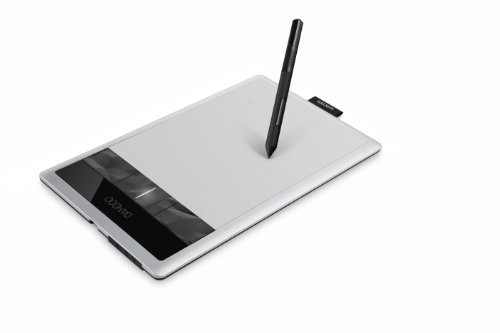
Wacom Bamboo Capture Pen Tablet
Best for: portable desktop drawing
- Tablet Type
- Pen Tablet
- Shortcut Controls
- 4 ExpressKeys
- Features
- Stylus, Stylus Pen
- Color
- Silver
- Dimensions
- 10.9 × 6.9 × 0.4 inches
- Weight
- 14.9 ounces
The Wacom Bamboo Capture is a compact pen tablet designed for digital art and photo editing. It measures 10.9 by 6.9 inches and weighs 14.9 ounces. The device includes four express keys for shortcuts and a pressure-sensitive pen. It connects to a computer to function. This setup suits users who want a lightweight, portable input tool for creative software without needing a standalone display.
- Compact 10.9-inch active area fits small desks
- Four express keys provide quick shortcut access
- Pressure-sensitive pen mimics natural pen-on-paper feel
- Lightweight 14.9-ounce build aids portability
- Smaller 10.9-inch working area compared to 21-inch pen displays
- Requires a separate computer to function
- No integrated display for direct visual feedback
- You need a portable drawing surface for travel
- You already own a computer and monitor
- You prefer a lightweight tablet for small workspaces
- You want a standalone tablet that works without a PC
- You need a large 21-inch display for detailed work
- You require direct screen drawing without a separate monitor
Verdict: Wacom Bamboo Capture Pen Tablet fits beginners who need a lightweight, portable input device for a desktop setup. It is ideal for users who prioritize portability and basic pressure sensitivity over a large integrated display.

Wacom Cintiq 22HD Touch Pen Display
Best for: Studio artists needing a large touch-enabled canvas
- Tablet Type
- Pen Display
- Screen Size
- 21.5"
- Display Resolution
- 1920 x 1080
- Shortcut Controls
- ExpressKeys and Touch Strips
- Features
- Stylus, Stylus Pen
- Display
- Touchscreen
This 21.5-inch pen display connects to a computer to serve as your primary drawing surface. It features a 1920 x 1080 resolution screen with 16.7 million colors. You get multi-touch gestures for panning and zooming, plus pressure and tilt sensitivity for precise strokes. The unit weighs 18.7 pounds and includes an ergonomic stand. It suits artists who want a large, direct-drawing workspace with touch controls.
- 21.5-inch HD display with 1920 x 1080 resolution
- Multi-touch support for pan, zoom, and rotate gestures
- Professional pen-pressure and pen-tilt sensitivity
- ExpressKeys and Touch Strips for shortcuts
- Heavy 18.7-pound build requires a stable desk
- 1920 x 1080 resolution is lower than 4K standards
- Requires a host computer to function
- You need a large canvas for detailed illustration work
- You want direct drawing with touch gesture support
- You have a dedicated desk space for a heavy display
- You need a portable tablet for travel
- You want a standalone device without a computer
- You prefer a lighter, more compact setup
Verdict: Wacom Cintiq 22HD Touch Pen Display is a substantial workstation for studio artists who value a large, responsive canvas and touch controls over portability.

Frunsi RubensTab T11 Pro 10.1-Inch
Best for: portable sketching and student note-taking
- Tablet Type
- Standalone
- Screen Size
- 10.1 inch
- Display Resolution
- 1920 x 1200 Full HD
- Features
- Octa-Core
- Color
- Black
- Audience
- Students, Beginners
The Frunsi RubensTab T11 Pro is a standalone drawing tablet that operates without a computer. It features a 10.1-inch Full HD IPS display and an octa-core processor. The device includes a 5800mAh battery for portable use. It comes with a pressure-sensitive pen and pre-installed drawing apps. This tablet suits students and beginners who need a portable, self-contained tool for sketching and note-taking.
- 10.1-inch Full HD (1920×1200) IPS display for sharp details
- Standalone design with octa-core CPU requires no computer
- 5800mAh battery provides up to 5 hours of continuous use
- Includes a battery-free pressure-sensitive pen for natural strokes
- Pre-installed professional drawing apps for immediate use
- 10.1-inch screen is smaller than the 21-inch and 22-inch pen displays in this guide
- 5-hour battery life is limited for extended professional sessions
- 12-month warranty is shorter than typical industry standards for professional hardware
- You need a portable device for sketching away from a desk
- You are a student or beginner looking for an all-in-one starter tablet
- You want to use drawing apps without connecting to a PC or Mac
- You require a large canvas for detailed professional illustration work
- You need all-day battery life without frequent recharging
- You prefer a larger 22-inch display for precise control
Verdict: Frunsi RubensTab T11 Pro 10-Inch Standalone Tablet is a compact standalone tablet for beginners and students who prioritize portability and ease of use over large screen real estate. It fits users who need a simple, self-contained device for casual drawing and note-taking on the go.

Wacom Graphire Medium Pen Tablet
Best for: Basic pen input on a small footprint
- Tablet Type
- Pen Tablet
- Pen Pressure
- 2048, tip only
- Features
- Stylus, Stylus Pen
- Color
- Black
- Dimensions
- 8.27 × 0.34 × 5.75 inches
- Weight
- 8.82 ounces
This Wacom Graphire is a 10-inch pen tablet designed for basic digital input. It features 2048 pressure levels and a cordless, battery-free stylus. The device connects via a standard USB Type-A port and requires Windows 7 or later, or OS X 10.10 or later. It is a compact, lightweight option for users who need reliable pen input without the complexity of a display or standalone system.
- 2048 pressure levels for detailed input
- Cordless, battery-free stylus
- Compact 10-inch active area
- Lightweight at 8.82 ounces
- 10-inch size is smaller than the 21-inch and 10.95-inch displays on this list
- Only 2048 pressure levels, which is lower than many modern drawing tablets
- 8.82-ounce weight is heavier than typical pen tablets of this class
- You need a simple, dedicated pen input device
- You prefer a cordless, battery-free stylus
- You have limited desk space for a larger tablet
- You require a built-in display for drawing directly on the screen
- You need a standalone device that works without a computer
- You want a larger 10.95-inch or 21-inch active area
Verdict: Wacom Graphire Medium Pen Tablet is a straightforward, compact pen tablet for users who need basic pressure-sensitive input without a display. It suits those who prioritize a cordless, battery-free stylus and a small footprint over high pressure levels or large screen real estate.
Specifications side by side
| Spec | Wacom 22HD Pen Display | XPPen 10.95" Android Drawing Tablet | Wacom Bamboo Capture Pen Tablet | Wacom Cintiq 22HD Touch Pen Display | Frunsi RubensTab T11 Pro 10.1-Inch | Wacom Graphire Medium Pen Tablet |
|---|---|---|---|---|---|---|
| Tablet Type | – | Standalone | – | – | Standalone | – |
| Screen Size | 21-Inch | 10.95-inch | – | 21.5" | 10.1 inch | – |
| Display Resolution | full HD resolution | – | – | 1920 x 1080 | 1920 x 1200 Full HD | – |
| Pen Pressure | – | 16384 | – | – | – | 2048, tip only |
| Refresh Rate | – | 90Hz | – | – | – | – |
| Display Finish | – | AG nano-etching, anti-glare | – | – | – | – |
| Shortcut Controls | customizable express keys | – | 4 ExpressKeys | ExpressKeys and Touch Strips | – | – |
| Operating System | – | Android | – | – | – | – |
| Use | – | Note-Taking | – | – | – | – |
| Features | Stylus, Stylus Pen | Tilt Support | Stylus, Stylus Pen | Stylus, Stylus Pen | Octa-Core | Stylus, Stylus Pen |
| Display | – | Anti-Glare | – | Touchscreen | – | – |
| Color | Black | Silver White | Silver | Black | Black | Black |
| Audience | – | – | – | – | Students, Beginners | – |
| Dimensions | 25.5 × 2.2 × 15.7 inches | – | 10.9 × 6.9 × 0.4 inches | 25.6 × 2.7 × 15.7 inches | 7.87 × 6.69 × 0.39 inches | 8.27 × 0.34 × 5.75 inches |
| Weight | 18.7 pounds | 3.55 pounds | 14.9 ounces | 18.7 pounds | – | 8.82 ounces |
| Size | 22HD | 7.17 x 10.16 x 0.28 inches | – | 22HD Touch | 10 inch | 10 inches |
| Model | DTK2200 | 52e86482-279f-4728-80b7-089e325299ba | CTH470 | DTH2200 | RubensTab | CTL-672/K0-C |
Frequently asked questions
Which tablet type is best for professional studio work?
A pen display is the ideal choice for professional studio environments. These devices connect to a computer and offer a large, direct-drawing surface. You draw directly on the screen while watching your strokes appear in real time. This setup provides high precision and natural hand-eye coordination. Models like the Wacom 22HD Pen Display fit artists who need a large canvas for detailed design work.
Do I need a computer to use a standalone tablet?
No, you do not need a computer for a standalone tablet. These devices have their own operating systems and batteries. They function as self-contained units for sketching and note-taking. You can use them anywhere without being tethered to a desktop. The XPPen 10.95" Android Drawing Tablet allows for portable creative work with its integrated screen and Android system.
What is the difference between a pen display and a pen tablet?
The main difference is the screen. A pen display has a built-in monitor where you draw directly on the image. A pen tablet has no screen; you draw on a flat surface while looking at a separate computer monitor. Pen tablets are often smaller and lighter. The Wacom Bamboo Capture Pen Tablet is a lightweight option for users who prioritize portability over an integrated display.
Are standalone tablets good for students?
Yes, standalone tablets are excellent for students who need portability. They are compact and easy to carry for note-taking and casual drawing. You get a self-contained device that does not require extra cables or a host computer. The Frunsi RubensTab T11 Pro is a compact option designed for students and beginners who want ease of use on the go.
Which tablet type offers the largest drawing area?
Pen displays typically offer the largest drawing areas. They are designed as substantial workstations for studio use. These devices connect to a computer and provide a wide canvas for detailed work. The Wacom Cintiq 22HD Touch Pen Display features a 22-inch screen size. It is built for artists who value a large, responsive surface for professional design tasks.
Can I use a pen tablet without a battery in the stylus?
Some pen tablets use styluses that do not require batteries. These devices often rely on basic pressure-sensitive input. They are straightforward and compact for basic pen input tasks. The Wacom Graphire Medium Pen Tablet suits users who want a cordless, battery-free stylus. It is a small-footprint option for those who do not need high pressure levels or a large screen.
Is a pen display portable enough for travel?
Pen displays are generally not designed for high portability. They are substantial workstations that connect to a computer. Their larger size and weight make them better suited for a fixed studio desk. The Wacom 22HD Pen Display weighs 18.7 pounds. It fits artists who value screen accuracy and customizable controls over the ability to move the device frequently.


